如何在 Outlook 中实现会议被接受后自动分配颜色类别?
作者:互联网
2026-04-03
 其他
其他
在日常工作中,您可能会在 Outlook 中收到多封会议邮件。有时,您希望在接受会议邀请后,自动为其分配特定的颜色类别。通常,这一操作需要手动完成,但逐一设置会显得繁琐。本文将为您介绍如何在 Outlook 中实现自动分配颜色类别的方法。
使用 VBA 代码,在接受会议后自动分配颜色类别
使用 VBA 代码,在接受会议后自动分配颜色类别
1. 按住“ALT + F11”键,即可打开“Microsoft Visual Basic for Applications”窗口。
2. 在“Microsoft Visual Basic for Applications”窗口中,双击“Project 1(VbaProject.OTM)”窗格下的“ThisOutlookSession”以打开模块,然后将以下代码复制并粘贴到空白模块中。
VBA 代码:在接受会议后自动分配颜色类别
Public WithEvents SentItems As Outlook.Items
Private Sub Application_Startup()
    Set SentItems = Outlook.Application.Session.GetDefaultFolder(olFolderSentMail).Items
End Sub
Private Sub SentItems_ItemAdd(ByVal Item As Object)
Dim xMeetingItem As Outlook.MeetingItem
Dim xMeetingItemAccepted As Outlook.MeetingItem
Dim xAppointmentItem As Outlook.AppointmentItem
On Error Resume Next
If TypeOf Item Is MeetingItem Then
    Set xMeetingItem = Item
    If InStr(xMeetingItem.Subject, "Accepted:") = 1 Then
        Set xMeetingItemAccepted = xMeetingItem
        Set xAppointmentItem = xMeetingItemAccepted.GetAssociatedAppointment(True)
        With xAppointmentItem
            .Categories = .Categories & "Red Category"
            .Save
        End With
    End If
End If
End Sub
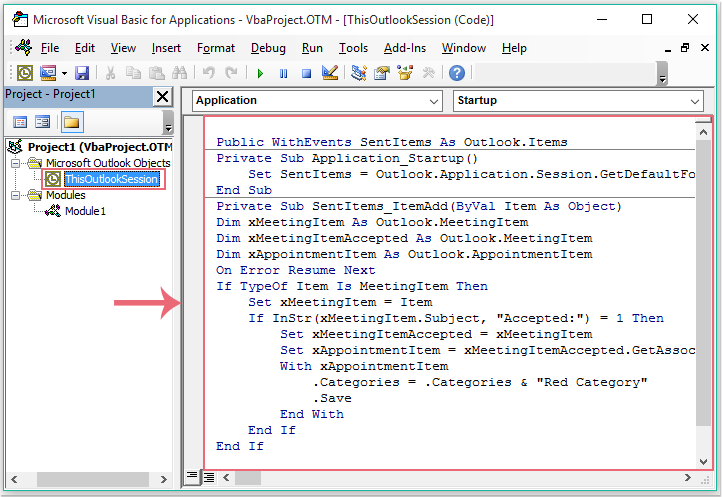
注意:在上述代码中,您可以将“Red Category”更改为所需的颜色类别名称。
3. 随后,重启 Outlook 以激活该宏。
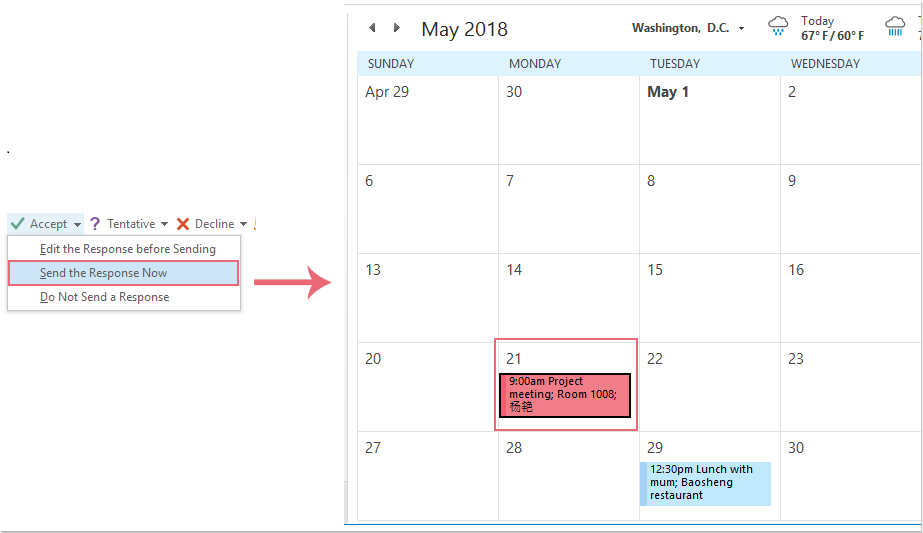
4. 接受会议邮件后,点击“立即发送响应”选项,系统会立即为已接受的会议分配特定的颜色类别。如下图所示:
注意:此代码仅适用于默认数据账户,敬请留意。
相关标签:
相关推荐
专题
+ 收藏
+ 收藏
+ 收藏
+ 收藏
+ 收藏
+ 收藏
最新数据

相关文章
如何在 Outlook 中将邮件标记为“私人”或“机密”?
如何在 Outlook 中查找 POP 3/IMAP 邮箱账户的端口号?
如何在 Outlook 中移除日期分组、标题或分隔条?
如何在 Outlook 中删除所有生日提醒?
Outlook:如何在撰写邮件时统计字数或字符数?
如何更改 Outlook 搜索结果的高亮显示颜色?
如何在 Outlook 中自动筛选外部邮件?
如何在 Outlook 中打印包含备注的日历?
如何在 Outlook 中恢复归档的信息?
如何在 Outlook 中按州或省份搜索联系人?
AI精选